Complete Interactive Tutorial
Intermediate ~30 minThe aim of this tutorial is to deploy Django applications on Internet Information Services (IIS). We'll cover two deployment methods with detailed configuration steps and visual guides.
This tutorial assumes basic knowledge of Django and Python. We'll guide you through the IIS-specific configurations.
Microsoft's recommended approach for modern Python web applications.
Legacy method, no longer actively maintained but still functional.
pip install Django==4.1.7python --versionpy -m django --versionC:\Users\azureuser>python --version
Python 3.11.2
C:\Users\azureuser>py -m django --version
4.1.7We'll create a basic Django application following the official Django tutorial. This will be created under C:\sites\site01
Understanding the basic Django project structure:
C:\sites\site01>tree /F
C:.
└───mysite
│ db.sqlite3
│ manage.py
│
├───logs
├───mysite
│ │ asgi.py
│ │ settings.py
│ │ urls.py
│ │ wsgi.py
│ │ __init__.py
│ │
│ └───__pycache__
│ settings.cpython-311.pyc
│ urls.cpython-311.pyc
│ wsgi.cpython-311.pyc
│ __init__.cpython-311.pyc
│
└───polls
│ admin.py
│ apps.py
│ models.py
│ tests.py
│ urls.py
│ views.py
│ __init__.py
│
├───migrations
│ __init__.py
│
└───__pycache__
urls.cpython-311.pyc
views.cpython-311.pyc
__init__.cpython-311.pycpy manage.py runserverThis will run the development server at http://localhost:8000

Create a logs folder in your project directory. This will be used later for IIS logging configuration.
Both deployment methods require IIS. You can install it through Server Manager or PowerShell:
Install-WindowsFeature -name Web-Server -IncludeManagementToolsBoth methods require editing Handler Mappings, which by default has read-only permissions. We need Read/Write access:
Path: IIS Manager → Server Level → Feature Delegation → Handler Mappings → Read/Write
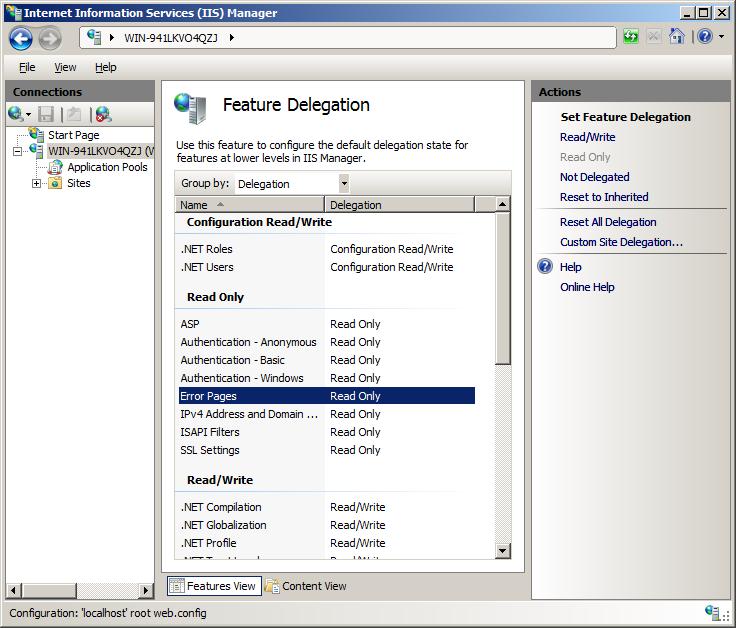
We'll create two separate sites to demonstrate both deployment methods:
Microsoft recommends HttpPlatform handler as it's actively maintained and provides better process management for Python applications.
Download and install the HttpPlatformHandler v1.2 from Microsoft:
Download HttpPlatformHandlerWhat it does:
Navigate to: IIS Manager → Sites → Site01 → Configuration Editor → system.webServer/httpPlatform
| Setting | Value | Description |
|---|---|---|
| processPath | C:\Python311\python.exe |
Path to Python executable |
| arguments | C:\sites\site01\mysite\manage.py runserver %HTTP_PLATFORM_PORT% |
Django management command with dynamic port |
| stdoutLogEnabled | true |
Enable logging output |
| stdoutLogFile | C:\sites\site01\mysite\logs |
Path for log files |
Navigate to: IIS Manager → Sites → Site01 → Configuration Editor → appSettings
PYTHONPATH = C:\sites\site01\mysite
WSGI_HANDLER = django.core.wsgi.get_wsgi_application()
DJANGO_SETTINGS_MODULE = mysite.settingsNavigate to: IIS Manager → Sites → Site01 → Handler Mappings → Add Module Mapping
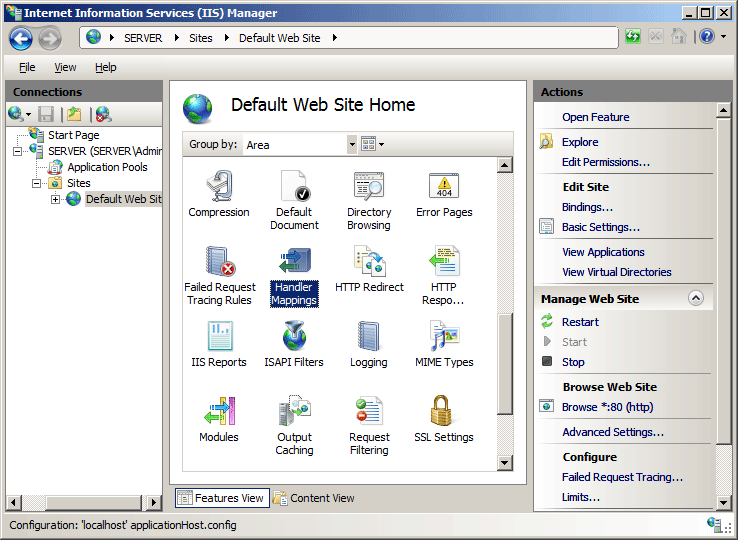
Important: Click "Request Restrictions" and uncheck "Invoke handler only if request is mapped to"
Your final web.config should look like this:
<?xml version="1.0" encoding="UTF-8"?>
<configuration>
<system.webServer>
<httpPlatform processPath="C:\Python311\python.exe"
arguments="C:\sites\site01\mysite\manage.py runserver %HTTP_PLATFORM_PORT%"
stdoutLogEnabled="true"
stdoutLogFile="C:\sites\site01\mysite\logs">
<environmentVariables>
<environmentVariable name="SERVER_PORT" value="%HTTP_PLATFORM_PORT%" />
</environmentVariables>
</httpPlatform>
<handlers>
<add name="MyPyHandler" path="*" verb="*" modules="httpPlatformHandler" resourceType="Unspecified" />
</handlers>
</system.webServer>
<appSettings>
<add key="PYTHONPATH" value="C:\sites\site01\mysite" />
<add key="WSGI_HANDLER" value="django.core.wsgi.get_wsgi_application()" />
<add key="DJANGO_SETTINGS_MODULE" value="mysite.settings" />
</appSettings>
</configuration>Navigate to http://localhost:8001/polls to test your Django application running on IIS with HttpPlatform handler.
WFastCGI is no longer actively maintained by Microsoft, but still functional for existing deployments.
pip install wfastcgiInstall-WindowsFeature -name Web-CGIClose and reopen IIS Manager to see the new FastCGI module.
Navigate to: IIS Manager → Server Level → FastCGI → Add Application
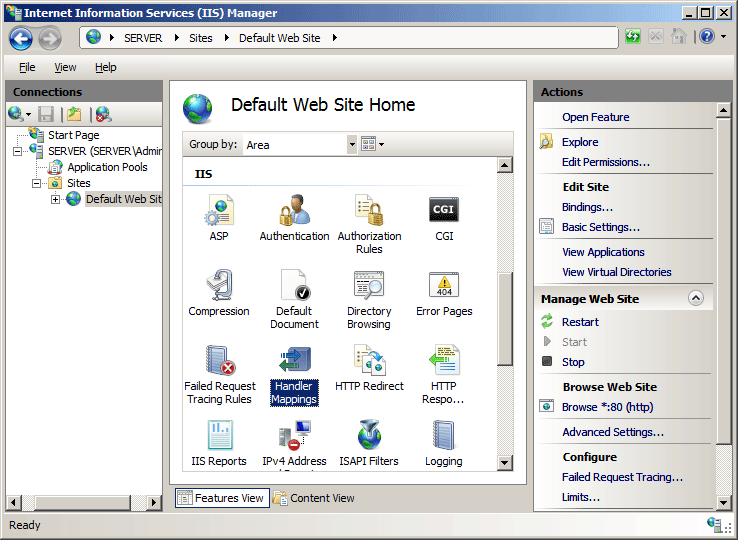
Navigate to: IIS Manager → Sites → Site02 → Handler Mappings → Add Module Mapping
Important: Uncheck "Invoke handler only if request is mapped to" in Request Restrictions.
Navigate to: IIS Manager → Sites → Site02 → Configuration Editor → appSettings
PYTHONPATH = C:\sites\site02\mysite
WSGI_HANDLER = django.core.wsgi.get_wsgi_application()
DJANGO_SETTINGS_MODULE = mysite.settings<?xml version="1.0" encoding="UTF-8"?>
<configuration>
<system.webServer>
<handlers>
<add name="MyPyHandler2" path="*" verb="*" modules="FastCgiModule"
scriptProcessor="C:\Python311\python.exe|C:\Python311\Lib\site-packages\wfastcgi.py"
resourceType="Unspecified" requireAccess="Script" />
</handlers>
</system.webServer>
<appSettings>
<add key="PYTHONPATH" value="C:\sites\site02\mysite" />
<add key="WSGI_HANDLER" value="django.core.wsgi.get_wsgi_application()" />
<add key="DJANGO_SETTINGS_MODULE" value="mysite.settings" />
</appSettings>
</configuration>The FastCGI section is stored in C:\Windows\System32\inetsrv\Config\applicationHost.config:
<system.webServer>
<fastCgi>
<application fullPath="C:\Python311\python.exe"
arguments="C:\Python311\Lib\site-packages\wfastcgi.py"
monitorChangesTo=""
stderrMode="ReturnStdErrIn500"
maxInstances="4"
idleTimeout="300"
activityTimeout="30"
requestTimeout="90"
instanceMaxRequests="200"
signalBeforeTerminateSeconds="0"
protocol="NamedPipe"
queueLength="1000"
flushNamedPipe="false"
rapidFailsPerMinute="10" />
</fastCgi>
</system.webServer>Navigate to http://localhost:8002/polls to test your Django application running on IIS with WFastCGI handler.
# HttpPlatform logs
C:\sites\site01\mysite\logs\
# IIS logs
C:\inetpub\logs\LogFiles\
# Windows Event Logs
Event Viewer → Windows Logs → Application| Feature | HttpPlatform Handler | WFastCGI |
|---|---|---|
| Maintenance Status | ✓ Actively maintained | ✗ No longer maintained |
| Microsoft Recommendation | ✓ Recommended | ~ Legacy support |
| Setup Complexity | ✓ Simpler configuration | ~ More complex setup |
| Process Management | ✓ Better process handling | ~ Basic process management |
| Performance | ✓ Good for development/testing | ✓ Can be optimized for production |
You now have two working methods to deploy Django applications on IIS. Both approaches have their merits:
Recommendation: For production deployments, consider using dedicated WSGI servers like Gunicorn or uWSGI behind IIS as a reverse proxy for better performance and scalability.