🔌 Arduino Fundamentals

Professional Tutorial - From Basics to Practice

What is Arduino?

Open-source electronics platform based on easy-to-use hardware and software, designed for creating interactive electronic projects.

✨ Key Features

  • Easy to use for beginners
  • Powerful for professionals
  • Large community support
  • Affordable and accessible
  • Cross-platform IDE

🚀 Applications

  • Robotics projects
  • Home automation
  • IoT devices
  • Sensor systems
  • Interactive art installations
💡 Did you know? Arduino was created in 2005 in Italy to help students learn electronics without expensive equipment!

Arduino UNO - Technical Specifications

Component Specification
Microcontroller ATmega328P
Operating Voltage 5V
Input Voltage 7-12V (recommended)
Digital I/O Pins 14 (6 with PWM capability)
Analog Input Pins 6 (A0-A5)
Flash Memory 32 KB
SRAM 2 KB
Clock Speed 16 MHz

🔌 Key Components

  • USB Port: Programming & power supply
  • Power Jack: External power (7-12V)
  • Digital Pins: 0-13 for I/O operations
  • Analog Pins: A0-A5 for sensor reading
  • Power Pins: 5V, 3.3V, GND, VIN
  • Reset Button: Restart program
  • Built-in LED: Connected to pin 13

⚡ PWM Pins

Pins with PWM capability (marked with ~):

  • Pin 3
  • Pin 5
  • Pin 6
  • Pin 9
  • Pin 10
  • Pin 11

These pins can produce analog-like output using Pulse Width Modulation

Understanding the Breadboard

A solderless prototyping board that allows you to build and test circuits without permanent connections.

🔧 Structure

  • Power Rails (Vertical): Red (+) and Blue (-) lines running along both sides
  • Terminal Strips (Horizontal): 5 holes connected internally in each row
  • Center Gap: Separates two sides, perfect for IC chips

✅ Advantages

  • No soldering required
  • Reusable for multiple projects
  • Easy to modify circuits
  • Quick prototyping
  • Beginner-friendly
  • Cost-effective
💡 Pro Tip: Use color-coded wires - Red for power (+), Black for ground (-), other colors for signals
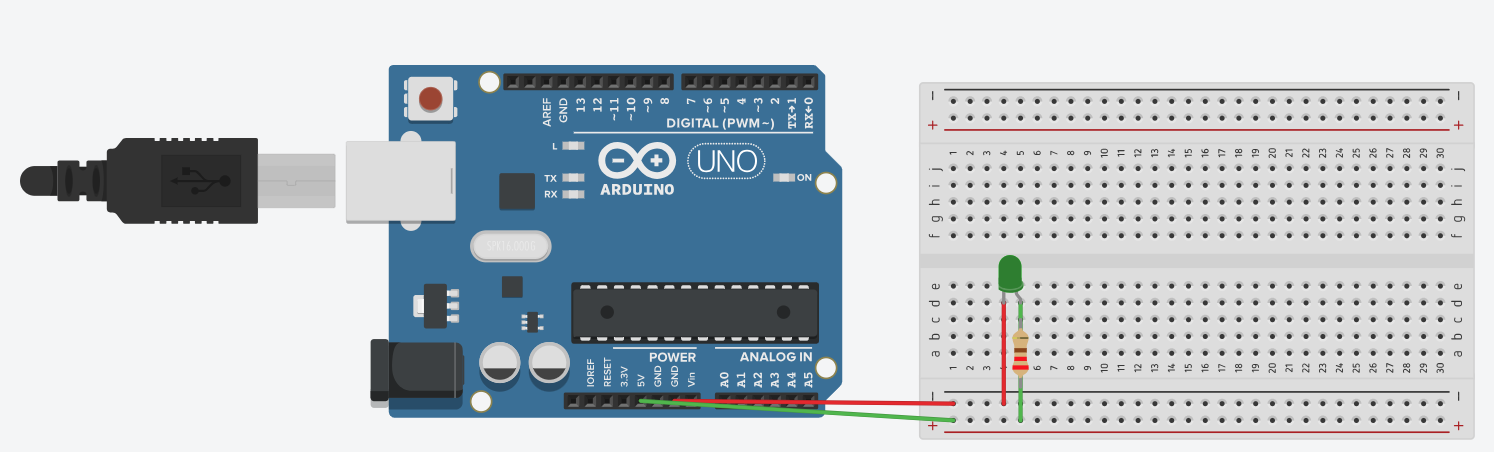
Circuit 1: Basic LED Blink

Circuit 1: LED Blink

📦 Components Needed

  • Arduino UNO board
  • Breadboard
  • LED (Green) - 1 unit
  • 220Ω Resistor (Red-Red-Brown)
  • Jumper wires (3 pieces)
  • USB cable for programming

🔌 Step-by-Step Connections

  • Step 1: Connect Arduino GND to breadboard ground rail (blue)
  • Step 2: Connect LED cathode (-) short leg to ground rail
  • Step 3: Connect LED anode (+) long leg to resistor
  • Step 4: Connect resistor other end to breadboard row
  • Step 5: Connect Arduino Pin 6 to same breadboard row

⚡ Important: LED Polarity

Long leg = Anode (+) → Connects to resistor

Short leg = Cathode (-) → Connects to ground

If connected backwards, the LED won't light up!

Code: Basic LED Blink

/* Basic LED Blink Tutorial This program blinks an LED connected to pin 6 */ // Define the LED pin const int ledPin = 6; void setup() { // Initialize the LED pin as an output pinMode(ledPin, OUTPUT); // Initialize serial communication for debugging Serial.begin(9600); Serial.println("LED Blink Program Started"); } void loop() { // Turn the LED on digitalWrite(ledPin, HIGH); Serial.println("LED ON"); // Wait for 1 second (1000 milliseconds) delay(1000); // Turn the LED off digitalWrite(ledPin, LOW); Serial.println("LED OFF"); // Wait for 1 second delay(1000); }

📋 Code Structure

setup(): Runs once when Arduino starts. Initialize pins, serial communication, and variables.

loop(): Runs continuously after setup. Contains main program logic.

🔑 Key Functions Used

  • pinMode(pin, OUTPUT) - Configure pin
  • digitalWrite(pin, HIGH/LOW) - Turn on/off
  • delay(ms) - Pause execution
  • Serial.begin(9600) - Start serial
  • Serial.println() - Print to monitor
🎯 Expected Result: The LED will blink ON for 1 second, then OFF for 1 second, repeating continuously. Serial Monitor will display "LED ON" and "LED OFF" messages.

Circuit 2: Push Button LED Control

Circuit 1: LED Blink

📦 Additional Components

  • All components from Circuit 1
  • Push button switch (1 unit)
  • Additional jumper wires (2 pieces)

💡 Note: No external resistor needed for button - we use Arduino's internal pull-up resistor!

🔌 New Connections

  • Button Pin 1: Connect to Arduino Pin 13
  • Button Pin 2: Connect to Ground rail
  • LED Circuit: Remains the same as Circuit 1

⚙️ How it works:
• Button pressed = LOW signal
• Button released = HIGH signal (pull-up)

🎯 Objective

LED turns ON when button is pressed, OFF when released - creating an interactive circuit controlled by user input!

Code: Push Button LED Control

/* Push Button LED Control LED turns on when button is pressed */ // Define pin numbers const int buttonPin = 13; // Push button on pin 13 const int ledPin = 6; // LED on pin 6 int buttonState = 0; // Variable to store button state void setup() { // Initialize LED pin as output pinMode(ledPin, OUTPUT); // Initialize button with internal pull-up resistor pinMode(buttonPin, INPUT_PULLUP); // Start serial communication Serial.begin(9600); Serial.println("Button Control Started"); } void loop() { // Read the button state buttonState = digitalRead(buttonPin); // Check if button is pressed // With INPUT_PULLUP: pressed = LOW, released = HIGH if (buttonState == LOW) { digitalWrite(ledPin, HIGH); // Turn LED on Serial.println("Button Pressed - LED ON"); } else { digitalWrite(ledPin, LOW); // Turn LED off Serial.println("Button Released - LED OFF"); } delay(50); // Small delay for stability }

🔑 Key Concept: INPUT_PULLUP

The INPUT_PULLUP mode enables an internal resistor (20-50kΩ) that pulls the pin to HIGH (5V) when the button is not pressed. When you press the button, it connects the pin to ground (GND), making it read LOW.

Logic Summary:
• Button NOT pressed → Pin reads HIGH
• Button pressed → Pin reads LOW
• This inverted logic is why we check if (buttonState == LOW)
🎯 Expected Result: LED lights up immediately when you press the button and turns off when you release it. Serial Monitor shows real-time button state.

PWM - LED Fading Effect

Pulse Width Modulation (PWM) allows us to simulate analog output on digital pins by rapidly switching between HIGH and LOW.

/* PWM LED Fading Effect LED gradually brightens and dims */ const int ledPin = 6; // Must be PWM pin (~) int brightness = 0; int fadeAmount = 5; void setup() { pinMode(ledPin, OUTPUT); Serial.begin(9600); } void loop() { // Set LED brightness using PWM (0-255) analogWrite(ledPin, brightness); // Change brightness for next iteration brightness = brightness + fadeAmount; // Reverse direction at the limits if (brightness <= 0 || brightness >= 255) { fadeAmount = -fadeAmount; } Serial.print("Brightness: "); Serial.println(brightness); delay(30); // Controls fading speed }

📊 PWM Value Range

0 = Completely OFF (0% duty cycle)

64 = 25% brightness

128 = 50% brightness

192 = 75% brightness

255 = Full brightness (100% duty cycle)

~ PWM-Capable Pins

Only these pins can use analogWrite():

  • Pin 3
  • Pin 5
  • Pin 6 ← (We're using this)
  • Pin 9
  • Pin 10
  • Pin 11

Look for the ~ symbol next to the pin number on the board!

⚡ How PWM Works: The pin rapidly switches on and off. A higher value means more "on" time, making the LED appear brighter. The switching happens so fast (490 Hz) that our eyes perceive it as varying brightness!

Essential Arduino Functions Reference

📤 Output Functions

pinMode(pin, OUTPUT)

Configure pin as output

digitalWrite(pin, HIGH/LOW)

Set digital pin to 5V (HIGH) or 0V (LOW)

analogWrite(pin, 0-255)

PWM output with duty cycle 0-255

📥 Input Functions

pinMode(pin, INPUT_PULLUP)

Configure pin as input with internal pull-up

digitalRead(pin)

Read digital value: HIGH or LOW

analogRead(pin)

Read analog value: 0-1023 (10-bit ADC)

⏱️ Timing Functions

delay(milliseconds)

Pause program for specified time

millis()

Returns time (ms) since program started

delayMicroseconds(us)

Microsecond-precision delays

💬 Serial Communication

Serial.begin(9600)

Initialize serial at 9600 baud rate

Serial.println(data)

Print data with newline

Serial.print(data)

Print data without newline

Best Practices & Troubleshooting

🔧 Hardware Best Practices

  • Always check LED polarity before connecting
  • Use appropriate resistor values (220Ω-1kΩ for LEDs)
  • Verify all connections before powering on
  • Use color-coded wires for organization
  • Disconnect power when modifying circuits
  • Keep breadboard neat and organized

💻 Software Best Practices

  • Comment your code clearly
  • Use meaningful variable names
  • Initialize all variables properly
  • Use Serial Monitor for debugging
  • Test code incrementally
  • Save versions of working code

⚠️ Safety Guidelines

  • Never exceed voltage ratings (max 5V on pins)
  • Avoid short circuits (connecting + to - directly)
  • Always use current-limiting resistors with LEDs
  • Don't connect high voltage to Arduino pins
  • Check component datasheets for specifications
  • Keep liquids away from electronics

🐛 Common Problems & Solutions

LED Not Working?

  • Check LED polarity (long leg = +)
  • Verify resistor is connected
  • Confirm correct pin number in code
  • Try different LED (may be burnt)

Button Not Responding?

  • Check button orientation on breadboard
  • Verify INPUT_PULLUP is used
  • Add debouncing delay (50ms)
  • Test with Serial.println(buttonState)

🎯 Practice Challenges

Challenge 1: Traffic Light System
Build a 3-LED traffic light (Red, Yellow, Green) that cycles through proper sequences: Red (5s) → Yellow (2s) → Green (5s) → Yellow (2s)

Challenge 2: Multi-Level Brightness
Use a button to cycle through 4 brightness levels: OFF → DIM (64) → MEDIUM (128) → BRIGHT (255)

Challenge 3: Reaction Timer Game
LED lights up after random delay. Measure how fast user presses button using millis()